


Welcome to the Apps for Kids Highlight- February Edition
February is all about creativity, connection, and learning by doing. In this edition, we’re excited to share a lesson plan on designing wearable devices, inviting students to think like real designers and engineers while exploring creativity, problem-solving, and user-centered design. We’re also celebrating Friendship Month with a fun and meaningful project: a step-by-step video tutorial that guides students through designing a 3D printable photo frame, perfect for capturing memories with their best friends while building 3D design skills.
Whether you’re looking to spark curiosity, encourage collaboration, or bring more joyful STEM projects into your lessons, we hope these resources help your students learn, create, and smile along the way. Happy designing!
Awesome Apps for Kids projects!
Check out these cool projects that we selected this month. Congratulations to the inspired designers! See all the shared projects on the Apps for Kids Website.
 Brachiosaurus colored planet Geyik
In the Spotlight
Designing the Future: A Lesson in Wearable Technology for K-12 Students
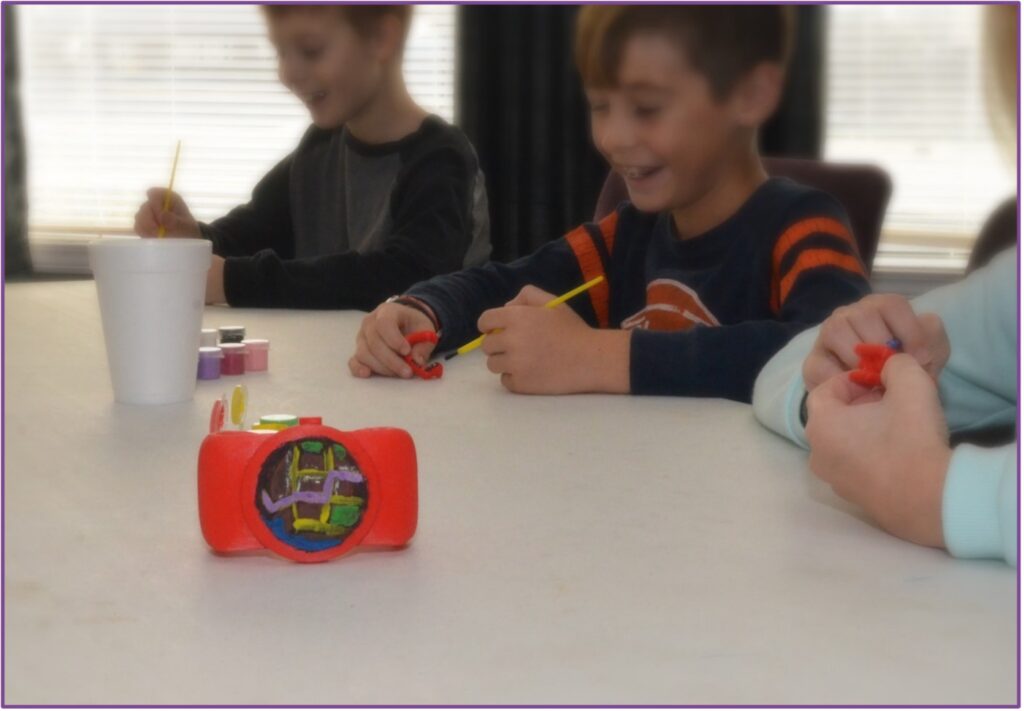
In an era where technology seamlessly integrates into daily life, helping students understand the “how” and “why” behind the devices they use is critical. The Designing Wearables lesson plan, utilizing SOLIDWORKS Apps for Kids, offers a structured pathway for educators to introduce young learners to the complex world of industrial design and engineering. This lesson goes beyond simple computer interactions; it challenges students to think critically about how technology can solve human problems.
Inspiring Innovation Through Design
The core objective of the Designing Wearables lesson is to shift students from passive consumers of technology to active creators. By focusing on wearable devices, like smartwatches, fitness trackers, or smart glasses, students engage with a product category they likely already recognize. This familiarity provides an accessible entry point into more abstract engineering concepts.
The lesson prompts students to consider the functionality of these devices. Questions such as “How could a wearable device help someone do their job better?” or “What data could a wearable collect?” encourage them to think like engineers. They aren’t just making pretty shapes; they are designing solutions. This process cultivates a mindset of innovation, where design is driven by purpose and utility.
Click here to continue reading about the whole story.
Inspiration and Challenges
Looking for a thoughtful way to celebrate your best friends? Our latest video tutorial shows you how to design a cleverly engineered photoframe using SOLIDWORKS Apps for Kids! While the design is wonderfully simple to build, its “ingenious” secret lies in its versatility, and it acts as a desktop gallery for all your favorite memories. You can print out a collection of photos capturing your best moments together and store them right inside the frame. This way, your friends can swap the front picture every single day to match their mood! It’s easy to customize, fun to 3D print, and the perfect DIY gift to show someone how much those shared memories mean to you.
Here is an example you can get inspired by through a tutorial video:
Do you want to see your students’ or your kids’ designs on SOLIDWORKS Education Facebook, Twitter, or Instagram? Share their A4K creation on social media, mentioning #photoframe AND #swa4k, and we might feature them on our channels!
Thank you from us all in the Apps for Kids Team!
***
Useful info and Apps for kids links:
- Apps For Kids Video Gallery
- AFK FAQ
- Sign up for an individual creator account, or a classroom account today!
Login to your Apps for Kids Classroom account
Login to your individual Apps for Kids Creator account
Share your Feedback with us
 We would love to hear from you, feel free to share what you are doing with Apps for Kids or any improvement you feel we could make.
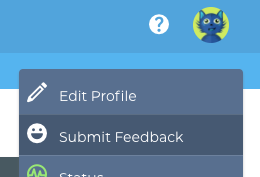
To share feedback with us, click your avatar at the top right and then choose “Submit Feedback”. Your feedback is directly shared to the AFK team!
️
Back to Blog